
QR Attendance for Gym: How to Set It Up, Step by Step
Set up QR attendance for your gym in a day: the phone, stand and placement, kiosk-style screen pinning, member passes, launch day and a setup checklist.
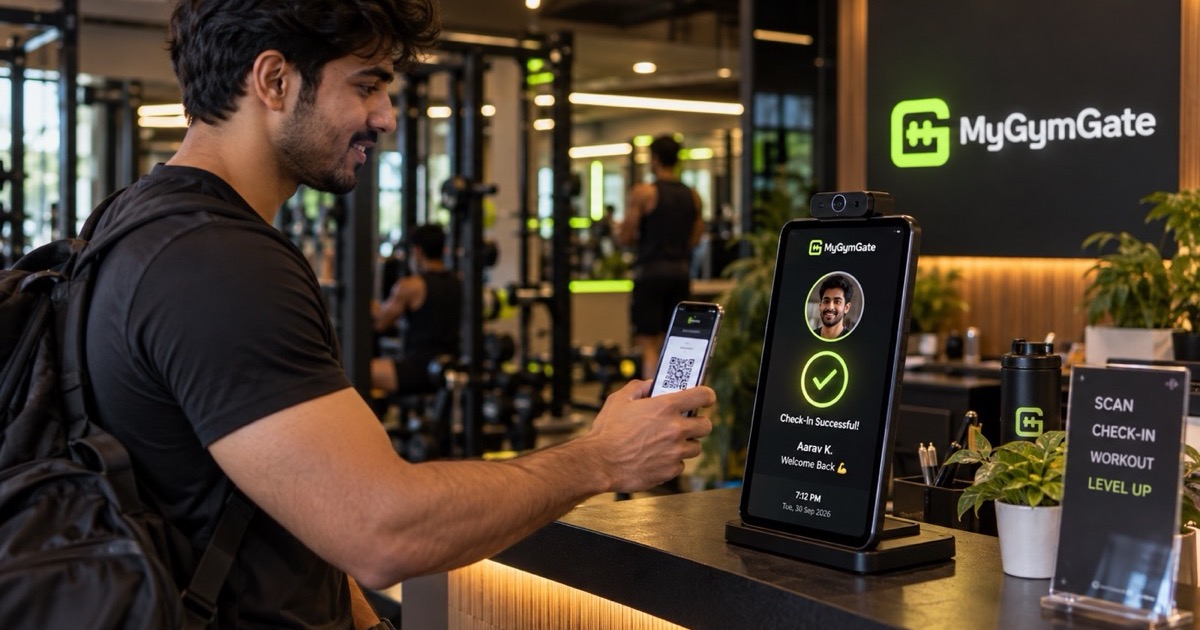
To set up QR attendance for your gym, you need three things: gym software that gives every member a personal QR pass, a spare Android phone fixed on a stand at the entrance as the scanner, and a plan for getting passes to members before day one. Mount the phone at chest height away from direct light, keep it on charge, pin the scanner app so it can't be closed, send passes by email or WhatsApp, and run your old register alongside for a week. Most gyms can do all of this in a day.
For what happens inside a scan, see our explainer on how QR code gym check-in works. This post is the practical side: what to buy, where to put it, and how to get through launch day. MyGymGate, gym management software for Indian gyms with QR check-in on any Android phone, is the worked example at the end, but every step applies to whichever system you choose.
What do you need before you start?
Less than most owners expect. Here's the full list.
- An Android phone for the scanner. An old one is usually fine. It needs a rear camera that focuses well up close and a screen that isn't cracked over the camera area.
- A stand or mount. A sturdy desk stand with a gooseneck or a wall bracket. A wobbly stand slows every scan.
- A charger and a long cable. The phone will be plugged in all day. Use a decent charger and route the cable so members can't knock it out.
- Internet. Gym Wi-Fi, with a mobile data SIM as backup. Check signal at the exact spot where the phone will sit.
- Your member list. Names, phone numbers, emails, plan and end dates. If it's in a register, this is the slow part, so start here.
- Gym software that issues QR passes. If you're still choosing between QR, RFID, fingerprint and face, our gym attendance system comparison lays out the trade-offs.
You don't need a turnstile or a computer at the desk.
Where should you place the scanner?
Walk in through your own door a few times and notice where people naturally slow down. That's the spot.
Height and angle
Chest height works for most adults, roughly where someone holds a phone to read it. Tilt the scanner slightly upward towards the member so nobody has to bend or stretch.
Lighting and glare
This is where most scanning problems come from.
- Backlight from the door. If sunlight or a bright entrance light is behind the member, the scanner camera struggles. Put the stand so the member faces the light, not the camera.
- Glare on member screens. A tube light directly above the scanner bounces off phone screens. Move the stand a little, or angle it, until a test scan works first time.
- Too dark. A small LED lamp near a dim desk fixes slow evening scans.
- Scanner screen brightness. Keep it bright enough for staff to read the result from a few steps away. Google's Pixel help on display settings shows where brightness and screen timeout live; other brands use similar menus.
Test under evening lights, not at 11 am when the place is empty.
Space for a queue
Leave room for two or three people to stand without blocking the door. If your entrance is narrow and your evening rush is heavy, a second scanner phone on the other side of the desk helps more than anything else. Use the gym capacity calculator to estimate how many people are inside at your peak, and see our post on managing gym peak hours for ways to spread the 6 pm crowd.
How do you lock the phone so it only runs the scanner?
A scanner phone left open gets used for music and reels within a week.
Use Android's app pinning
Android has a built-in feature called app pinning (sometimes screen pinning) that keeps one app on screen. According to Google's Android help page on pinning screens, you turn it on under Settings, then Security (or Security & location), Advanced, App pinning. Then open the scanner app, open the Overview screen, tap the app's icon at the top and tap Pin.
With app pinning on, Android asks for the phone's PIN, pattern or password to unpin. So set a screen lock code that only you and your manager know. Menu names vary by brand; search settings for "pin".
Keep the screen on
Set the screen timeout to the longest option. Android also has a "Stay awake" setting in Developer options, which the Android developer documentation describes as keeping the screen on while the device is plugged in. You enable Developer options by tapping Build number seven times in About phone. Change only that one setting.
Also mute notifications from every other app, so the scanner isn't pinging all evening.
How do members get their QR passes?
Every member needs their pass before launch day. Offer more than one format, because your members will differ.
| Pass format | Best for | Watch out for |
|---|---|---|
| Email with QR pass | Most members with smartphones | Spam folders; ask them to search their inbox |
| Web link to a pass page | Members who lose emails | They need data at the door, or a saved copy |
| Phone screenshot | Everyone, as a backup | Screenshots of a friend's pass; screen brightness |
| Printed or laminated card | Older members, students without phones | Creased or faded cards; keep spares |
| Name search at the desk | One-off cases | Slow, so not for regular use |
Ask members to save a screenshot of the pass so they're not searching an inbox while others wait. That one habit does more for queue speed than anything on the scanner side.
What should you do on day one?
- Announce it three or four days early. Send a short WhatsApp message to your members: "From Monday, check in with your QR pass at the entrance. We've emailed it to you. Save a screenshot so it's ready at the door." Put the same message on a printed notice at the desk.
- Put a person at the scanner for the first week. Someone friendly who shows members where to hold the phone and helps the ones who can't find their pass.
- Keep the register open. For the first week, anyone with a problem signs the register. Nobody gets turned away over a technical issue.
- Fix passes the same day. Collect the names of people whose pass didn't arrive or didn't scan. Resend or print them before the next morning.
- Check the numbers at closing. If the scanner's count matches the register, you're nearly ready to drop paper.
How do you handle members without phones?
- Print their pass. A card the size of a business card, laminated, with a white border around the code. Many members keep it in their wallet.
- Offer face check-in where your system has it. Some systems offer face check-in as an alternative, but it involves biometric data and needs clear consent. Read our post on face recognition attendance for gyms before you switch it on.
What happens when an expired member scans?
Good software checks the plan at the moment of the scan and shows a clear "expired" result instead of a welcome.
Decide in advance what staff say. For example: "Your plan ended on the 12th. You can renew at the desk now, or I can give you today as a one-day pass." The scanner shows the result; a polite, consistent script stops the conversation from feeling like an accusation.
What if the internet drops?
Reading a QR code happens on the phone, but checking the plan and saving the visit usually involves your software's server. What happens during a network drop varies between products: some queue scans and sync later, some just show an error.
Ask your vendor directly: "If the Wi-Fi goes down at 7 pm, what does the scanner do, and are those visits saved?" Then plan around the honest answer. Either way, two cheap habits help:
- Keep a mobile data SIM in the scanner phone, or a hotspot on another phone, as a backup to Wi-Fi.
- Keep a blank register in the drawer for power cuts and outages.
QR attendance setup checklist
| Task | Done when |
|---|---|
| Member list cleaned up | One list with name, phone, email, plan, end date |
| Software chosen and members imported | Every active member has a QR pass |
| Scanner phone reset and charged | Personal accounts removed, charger fixed |
| Stand placed and tested | Scans work first time under evening lights |
| App pinning on, screen lock set | Phone stays on the scanner app |
| Screen kept on | No sleeping while plugged in |
| Backup internet | Mobile data or hotspot tested at the stand |
| Passes sent | Email sent, print cards ready for non-phone members |
| Members told | WhatsApp message and desk notice out 3–4 days early |
| Staff briefed | Who stands at the scanner, what to say for expired plans |
| Register kept for week one | Count compared with the scanner each night |
How MyGymGate handles this
Here's how the same setup goes with MyGymGate, including what it doesn't do.
- Book a 15-minute demo. We look at your gym's plans, timings and how members currently sign in.
- Send us your member list. An Excel file, a Google Sheet or even photos of your register. Setup and member import are free, and there's no setup fee.
- We set up your gym. Your logo, colours and plans go in, and members are imported. We pair the scanner phone with you. From first call to first check-in usually takes about a day.
- Install the app on the scanner phone. Download the Android app from our download page (the Play Store listing is in review) and sign in with a scanner login. Any Android phone works, an old one included, and it becomes a locked-down scanner. You can add more than one scanner phone for busy entrances.
- Members get their passes. Each member gets a welcome email with their QR pass, plus a private tracker link that shows their visits, streak, plan and pass in any browser. No app or login for members.
- Members scan in. Check-in takes about 2 seconds. Expired plans are stopped at the door, and optional face check-in is available with the member's consent, with matching done on the scanner phone.
- Watch it on your dashboard. The owner app and web dashboard show who's inside now, today's visits, members expiring this week and inactive members.
What it doesn't do: MyGymGate doesn't take payments, and its WhatsApp templates open WhatsApp with the message filled in, so you or your staff still press send. On network drops, we'd rather not promise an offline mode here; ask us on the demo call exactly what the scanner does when the connection goes, and keep that register in the drawer either way.
MyGymGate costs ₹399 a month on one plan, with unlimited members and everything included. It's monthly, with no long lock-in.
Useful links
- How QR code gym check-in works
- Gym attendance systems compared
- Gym capacity calculator
- Google: Pin and unpin screens on Android
If you'd like help setting up QR attendance at your gym, book a free 15-minute demo. We'll walk through your entrance, your member list and your busiest hour, and set up the scanner and member import with you at no extra cost. If you just want to try the app first, you can download it for Android.
Frequently asked questions
Can I use an old Android phone as a gym QR scanner?
Usually, yes. What matters is a working rear camera that focuses on a screen held about a forearm's length away, a battery that holds up while plugged in, and a reliable Wi-Fi or mobile data connection. Test it with a few different member phones and a printed pass before launch day.
How do I stop staff from using the scanner phone for other things?
Turn on Android's app pinning (also called screen pinning) for the scanner app, and set it so a PIN, pattern or password is needed to unpin. The phone then stays on the scanner screen until someone who knows the code unpins it.
What if a member does not have a smartphone?
Print their QR pass on a card, ideally laminated, or keep a quick name search at the desk for them. Most QR systems scan a printed code just as easily as a phone screen.
What is MyGymGate and how much does it cost?
MyGymGate is gym management software for Indian gyms with QR and optional face check-in on any Android phone, automatic renewal and inactivity emails, WhatsApp templates and a TV leaderboard. It costs ₹399 a month on one plan with unlimited members and everything included, with free setup and member import.